
 Print View
Have you ever found it difficult to identify sincere inquiries or follow up on unresolved queries after the departure of sales personnel?
Message Center makes inquiry management easier and more efficient!
| ✓ | Cloud storage and auto synchronization enable you to easily check inquiries anytime, anywhere without changing your current management practices. | |
| ✓ | With the upgraded interface, you can add tags to each inquiry or mark your favorites to efficiently follow up on key buyers. | |
| ✓ | Inquiries highly regarded by Global Sources will be automatically flagged for your reference. You also can check any responses made by your competitors in the Dashboard. | |
| ✓ | In-depth inquiry reports help you efficiently manage your export team by checking the reply rates of both employees and buyers. |
| GS Supplier app features | Message Center features | |
|
• Instructions
• FAQ |
• Log in to Message Center
• Manage Inquiries • Reply to an Inquiry • Track Your Activity |
GS Supplier App
The GS Supplier App enable suppliers to identify and take advantage of global trade opportunities by providing them with a seamless platform to manage their foreign trade activities:
| ✓ | Manage inquiries anytime, anywhere. | |
| ✓ | Launch video feed ads and target buyers. | |
| ✓ | Manage buyer leads and exhibition activities all in one place. | |
| ✓ | Real-time chat with buyers. |
…and more coming soon!
How to use the GS Supplier App?
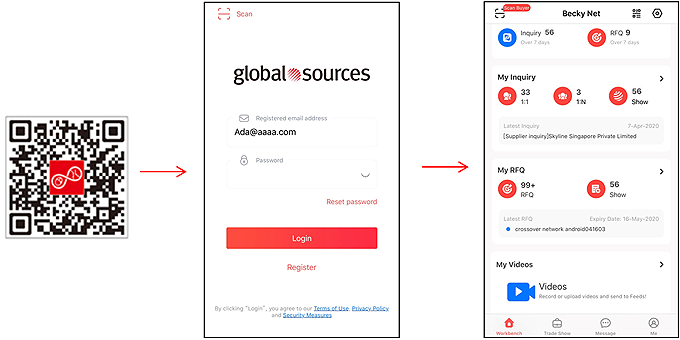
1. Download the app and login
| Scan the QR code below to download the app | Login with your Private Supplier Catalogue (PSC) username and password | Start managing your activities on the homepage |
2. Manage inquiries
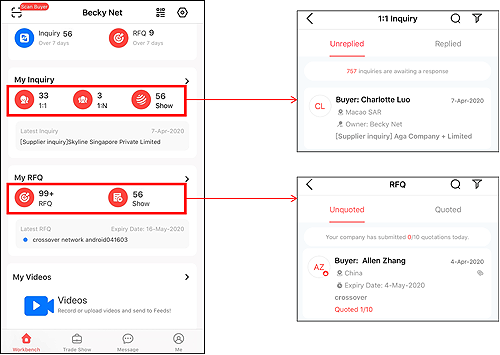
The App allows you to manage your online and offline inquiries. In addition to RFIs and RFQs from online buyers, you will also be able to receive requests from exhibition buyers.
3. Create/post video feed ads
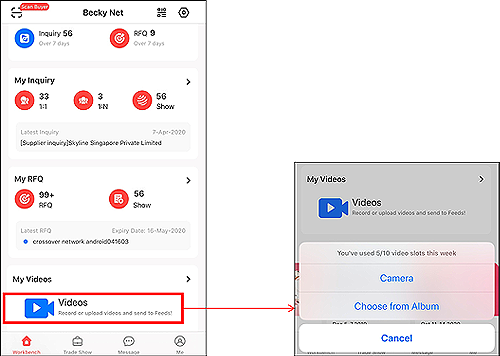
On "My Videos" section, you can post videos on your feeds to target directly or via their preferences. Use videos to immediately capture their attention and generate more business opportunities!
4. Chat now supports image, video and voice
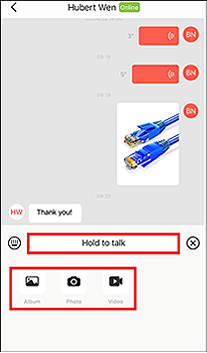
Chat now allows you to send and receive voice, images or video, enabling a more efficient and better experience when communicating with buyers.
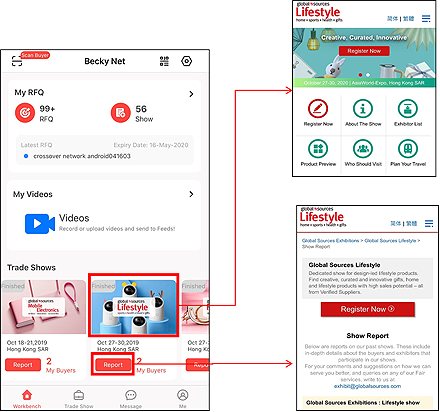
5. Trade shows information
In the "Trade shows" section, you can view information of pre-registered buyers, as well visitors you have previously contacted – giving you more, high-quality sales leads. In addition, get more information as well as information on upcoming shows and reports from previous shows.
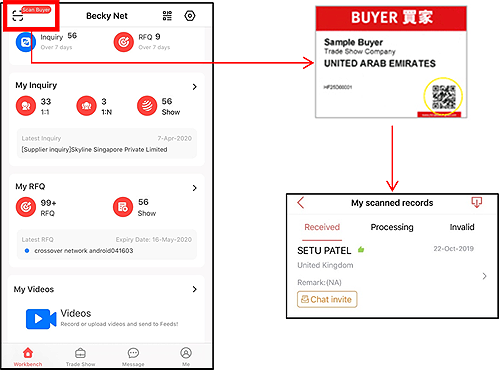
6. Scanning buyer badges
Scanning the QR code on the buyer badge allows you to retrieve the buyer information and any inquiry between you and the buyer. Just tap the scan icon to start scanning the QR code. The scanning function can be still be used when your offline, with the data retrieved the next time your device is online.
Act now and download the GS Supplier app to secure quality business opportunities!
Q1: How do I download the GS Supplier app?
Scan the QR code below or from the Private Supplier Catalogue (PSC) homepage to download.

Q2: What mobile OS versions does the GS Supplier run on?
Your device should be running Android 5.0 (“Lollipop”) or iOS 10 and above
Q3: What kind of users are eligible to use the app?
All the Private Supplier Catalogue (PSC) users
Q4: When posting a video, can I choose to leave the video description and associated products empty?
Yes you can do that. But to make your video more impactful and encourage buyers to send inquiries, we recommend that you fill in the description to accurately describe your video content and associate the relevant products.
Q5: Why do some trade shows indicate that "Registration is open"?
If the trade show has not yet started or in progress, the “Report” button will not be displayed and instead show "Registration is open". Once the trade show is finished, the “Report” button will be displayed one day after the show.
Q6: Why is "My Buyers" blank and cannot be clicked to enter pre-registered buyer list?
Details of "My Buyers” can only be viewed by the master account user (similar to Private Supplier Catalog/PSC rules). Other sub account users can only view existing data and NOT pre-registered buyer details.
Q7: How many trade shows can you view with the app?
The "Trade Shows" section currently only shows exhibitions with an end date 180 days before or after the current date.
Q8: Can Scanner be used offline?
Yes. Data will be stored in your mobile phone and automatically be transmitted when go online.
Message Center
Go to //message.globalsources.com to log in to Message Center with your Private Supplier Catalog account name and password. Or, click "Message Center" in the menu bar on the Private Supplier Catalog homepage.

2.1. Leads Manager
You can manage all inquiries and messages here. Your conversations with buyers through Message Center or your personal e-mail account will be synchronized to the cloud so you can check them anytime, anywhere.

2.2. Favorites
Mark a message as a Favorite to remind yourself to take action later or to filter for better follow-up.

2.3. High-quality inquiry recommendation
High-quality inquiries will be automatically flagged as “GlobalSources Recommended” for your quick reference.

2.4. Filter your inquires
Inquiries can be sorted based on inquiry type, region, buyer type or owner.

2.5. Search for RFI/RFQ
You can search for RFI/RFQ by subject, buyer name or email address.

2.6. Manage your conversations with tags
Create tags and organize your conversations by topic, product, month – whatever suits the way you work. You can add multiple tags to one inquiry.

2.7. Re-assign leads to sub-accounts
If you want a specific inquiry to be handled by another person, simply re-assign it.

Tick an inquiry, click on "More" and then click the "Re-assign to" link in the drop-down list. Choose a new owner in the pop-up window and then click the "Confirm" button.
Please note: Only the account Super Administrator can use this feature.
Every message that goes through Message Center is forwarded to your personal e-mail account so you can check your messages anytime, anywhere. And every reply, sent from Message Center or directly from your other e-mail account, is copied and saved in Message Center as well.
Click on an inquiry to view the details. By clicking the "Click here to reply" button, you can reply to this inquiry directly. Attachment size is limited to 7MB.

For a quick reply, click “Use Response Template” to create a message template.

Click “Setup Template” in the pop-up window.

Enter your message and click “Save”.

If you click the "Unwant" button, choose or input the reason why the inquiry is unwanted and then click the "Confirm" button. The inquiry will then be moved to the "Unwanted" folder.

Please note: Only the Super Administrator can use this feature.
Message Center helps you manage your export team effectively. The Super Administrator can track team activity and performance, and set goals to improve results.
You can download the report in CSV format by clicking the "Download CSV" button.
