




What is Personal AI Assistant?
Why You Need an AI Assistant in 2026
How to Use Personal AI Assistant for Work?
5 Best Personal AI Assistants for Work and How to Choose in 2026
How to Create a Personal AI Assistant(Step-by-step)
The way we work has fundamentally changed. Between overflowing inboxes and back-to-back meetings, knowledge workers now spend more time managing digital chaos than doing meaningful work. Personal AI assistants solve this by handling scheduling, email triage, and meeting transcription—freeing you to focus on what truly matters.
This guide explores everything you need to know about AI assistants in 2026: what they are, why you need one, how to use them, and which tools best fit your specific needs. Whether you're meeting-heavy or calendar-chaotic, there's an assistant designed to restore your focus.
What is Personal AI Assistant?
A personal AI assistant is intelligent software that uses natural language processing and machine learning to understand your requests and execute tasks across your digital tools. Unlike basic chatbots, it integrates directly with your calendar, email, and apps to draft messages, schedule meetings, summarize information, and automate workflows. Through continuous interaction, it learns your preferences and work habits, becoming more personalized and effective over time.
What sets true AI assistants apart is their proactive integration into your daily workflow rather than operating in isolated chat windows. They monitor your calendar for conflicts, flag urgent emails based on your priorities, and execute complex sequences like generating reports from scattered data. By handling repetitive tasks that fragment your focus, these assistants free up mental bandwidth for strategic thinking and high-value work that requires human judgment.
Why You Need an AI Assistant in 2026
The exponential growth of digital data and advances in artificial intelligence have fundamentally transformed how we work. Professionals now face unprecedented volumes of emails, messages, and notifications daily, creating cognitive overload that impedes productivity. AI personal assistants address this challenge by intelligently filtering noise, prioritizing critical tasks, and automating routine workflows across your digital tools.
By handling scheduling, email triage, document summarization, and information retrieval, these tools reduce context switching and mental fatigue. This enables deeper focus on strategic initiatives, enhances output quality, and creates capacity for personal restoration—allowing you to accomplish more meaningful work while maintaining sustainable boundaries.
How to Use Personal AI Assistant for Work?
AI personal assistants have evolved into versatile productivity partners that handle everything from routine administrative tasks to complex analytical work. By integrating across your digital tools, they automate repetitive processes, surface critical information, and execute multi-step workflows—freeing you to focus on strategic initiatives that require human judgment. Below are the primary ways professionals leverage these tools to streamline their workdays.
1. Schedule and Calendar Management
AI assistants schedule meetings, set reminders, and prevent double bookings by analyzing your availability across calendars. They learn your preferences over time—blocking focus hours, avoiding late afternoon calls, and automatically rescheduling conflicts when needed.
2. Email and Communication Triage
These tools draft replies, sort incoming messages, and flag urgent items requiring immediate attention. They analyze your writing style to mimic your tone, suggest responses, and can even handle initial customer inquiries autonomously.
3. Task Prioritization
When workloads become overwhelming, AI assistants analyze deadlines, project goals, and urgency to prioritize your to-do list. They suggest optimal task sequences and adjust recommendations as new priorities emerge throughout the day.
4. Document Drafting and Formatting
From business proposals and contracts to meeting notes, AI assistants generate polished documents using your preferred templates. They format content consistently and require minimal editing before final approval.
5. Meeting Support and Transcription
During meetings, these tools prepare agendas, take real-time notes, and transcribe discussions with speaker identification. They generate concise summaries and action items, ensuring nothing falls through the cracks.
6. Data Analysis and Reporting
AI assistants extract insights from spreadsheets and databases within minutes. They identify trends, generate visual reports, and surface key metrics—eliminating hours of manual data manipulation.
7. Project Management Oversight
These tools track project progress, assign tasks, and set reminders across teams. They identify potential bottlenecks early and suggest timeline adjustments to keep initiatives on track.
8. Research and Information Retrieval
AI assistants search across internal documents, emails, and the web to source relevant information. They summarize lengthy articles and reports, delivering condensed insights to accelerate decision-making.
9. Skill Development and Learning
For professional development, these tools recommend learning resources, create personalized study plans, and break down complex topics into digestible summaries tailored to your role.
10. Workflow Automation
Beyond individual tasks, AI assistants automate multi-step processes—like onboarding new hires or generating weekly status reports—by triggering actions across connected applications without manual intervention.
5 Best Personal AI Assistants for Work and How to Choose in 2026
The market for AI personal assistants has matured significantly by 2026, with tools now specializing in different aspects of knowledge work. Below are five standout options, each serving distinct needs—from meeting transcription to deep research and cross-app workflow automation.
1. Otter.ai – Best for Meeting Transcription and Collaboration
Best for: Professionals and teams who spend significant time in meetings and need accurate, searchable records.
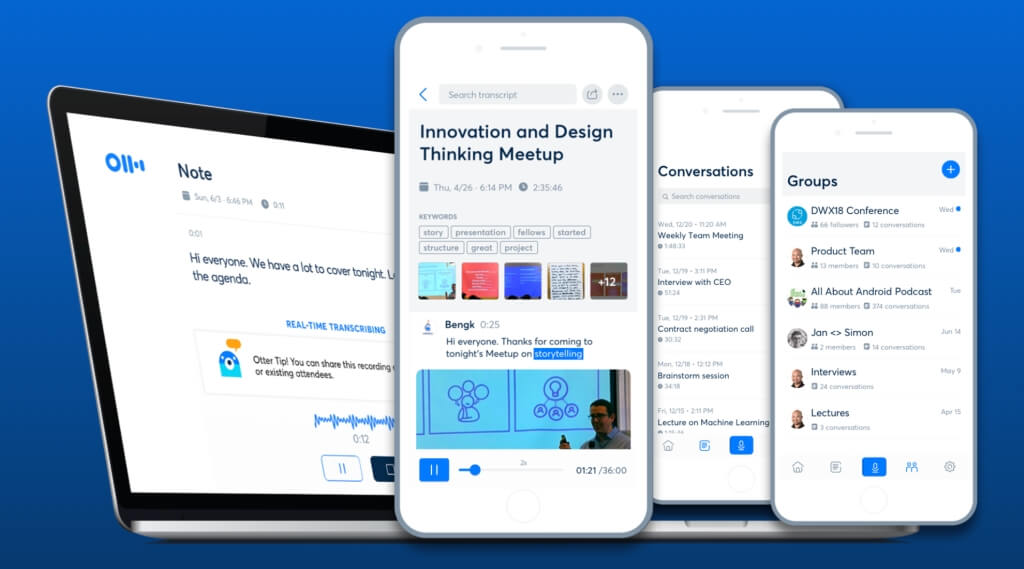
Otter.ai has established itself as the leading AI assistant for meeting productivity. It automatically joins and transcribes meetings on platforms like Zoom, Google Meet, and Microsoft Teams, generating real-time notes, summaries, and action items. The Otter AI Chat feature allows users to ask questions about past conversations, while its Sales Agent optimizes CRM integrations for client follow-up .
Key features:
- Real-time transcription with speaker identification
- Automatic summary generation with action items
- Searchable transcript archive
- Integration with calendar apps for auto-joining meetings
- Collaboration tools for editing and sharing notes
Pricing:
- Free: Basic version with limited transcription minutes
- Pro: $8.33 per user/month (billed annually)
- Business: $20 per user/month (billed annually)
Who it's for: Teams wanting to automate meeting management and focus on conversation rather than note-taking.
2. Google Gemini – Best for Google Workspace Users
Best for: Individuals and teams already relying on Gmail, Docs, Sheets, and Calendar.
Formerly Google Assistant, Gemini is now deeply embedded into Google Workspace, offering AI summaries of documents, email drafts, calendar optimization, and meeting insights. Its native multimodality allows it to understand and reason across text, images, audio, and video, making it particularly powerful for users who live in Google's ecosystem .
Key features:
- Native integration with Gmail, Docs, Sheets, and Calendar
- Email drafting with context from your files
- Meeting time suggestions based on shared availability
- Live web search grounding
- Mobile voice assistant with on-screen awareness
Pricing:
- Free: Basic version included with Google accounts
- Gemini Advanced: $19.99/month via Google One AI Premium
Who it's for: Google-centric users who want AI assistance without switching between apps.
3. Reclaim.ai – Best for Calendar Optimization and Work-Life Balance
Best for: Professionals who struggle to protect focus time and maintain boundaries.
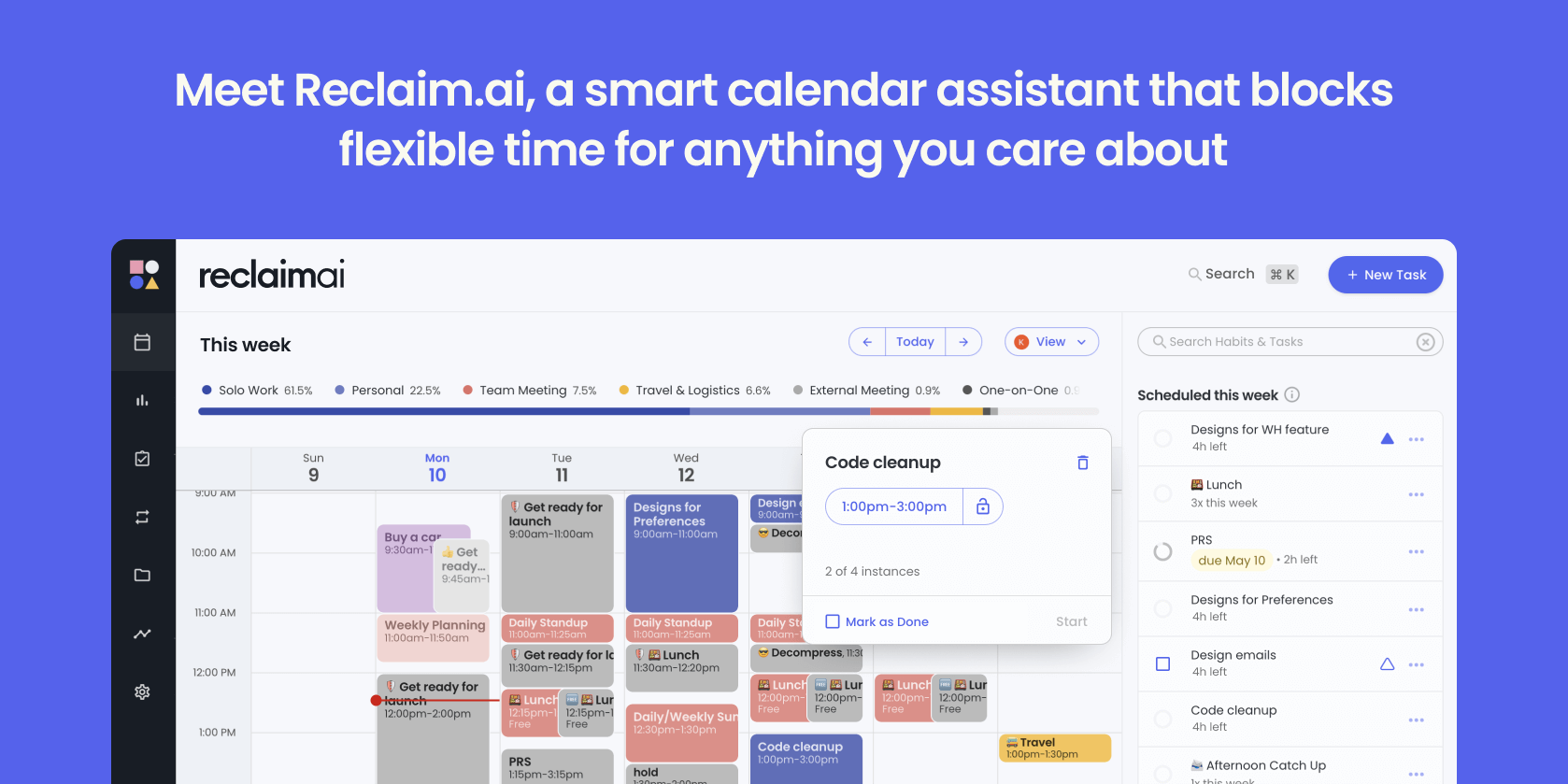
Reclaim.ai is an AI-powered scheduling assistant that automatically protects time for your priorities. It analyzes your calendar, tasks, and habits to block focus time, schedule meetings at optimal times, and preserve breaks—all while flexibly adapting when conflicts arise. Unlike tools that just suggest schedules, Reclaim actively defends your time.
Key features:
- Automatic focus time blocking around existing events
- Smart meeting scheduling across multiple attendees
- Habit protection (lunch breaks, exercise, meeting-free days)
- Integration with Google Calendar and task tools
- Slack status sync to prevent interruptions
Pricing:
- Free: Lite plan with basic features
- Starter: $8 per user/month
- Business: $12–$18 per user/month (scales with team size)
Who it's for: Individuals and teams wanting to protect deep work while maintaining calendar flexibility.
4. OpenClaw – Best Open-Source, Local-First Assistant
Best for: Technical users who prioritize data privacy and custom automation.
OpenClaw is an open-source, self-hosted AI personal assistant that runs on your own computer and interacts through familiar messaging platforms like WhatsApp, Telegram, Slack, and iMessage. Unlike cloud-based assistants, it executes real tasks—managing calendars, sending emails, controlling apps, and automating workflows—while keeping your data entirely on your device [cited from user-provided materials.
Key features:
- Runs locally on Mac, Linux, or Windows
- Works through messaging apps you already use
- Remembers past interactions for workflow continuity
- Can open apps, run shell commands, browse web, manage files
- MIT-licensed open-source software
Pricing:
- Free: Open-source under MIT License
- Note: May incur API costs if using third-party LLM services (e.g., Claude, GPT-5)
Who it's for: Privacy-conscious users comfortable with command-line setup who want full control over their assistant.
5. Braina – Best for Cross-Platform Voice Control and Automation
Best for: Power users wanting comprehensive voice control across Windows and mobile devices.
Braina (Brain Artificial) is a sophisticated AI assistant that combines voice recognition with automation capabilities. It allows users to dictate text, control applications, search the web, and automate repetitive tasks using natural language commands. Its strength lies in its cross-platform functionality and ability to understand complex, multi-step instructions.
Key features:
- Accurate speech-to-text in multiple languages
- Application control via voice commands
- Intelligent automation for repetitive workflows
- Remote access from mobile devices
- Integration with third-party apps and services
Pricing: (Note: Pricing information should be verified on official website as it varies by license type)
Who it's for: Users seeking a comprehensive voice-controlled assistant with robust automation capabilities beyond basic scheduling.
How to Choose the Right Personal AI Assistant
Selecting the ideal AI assistant for your work depends on understanding your specific workflow challenges and matching them to the right tool's strengths. Below is a comprehensive comparison of the five assistants covered above, followed by practical guidance based on common user scenarios.
Quick Comparison Table: Top 5 Personal AI Assistant for Work
| Assistant | Primary Strength | Best For | Key Integrations | Pricing | Platform | Learning Curve |
| Otter.ai | Meeting transcription & collaboration | Sales, consulting, management roles | Zoom, Google Meet, Teams, CRM | Free / $8.33–$20/mo | Web, iOS, Android | Low |
| Google Gemini | Google Workspace integration | Gmail/Docs/Calendar power users | Gmail, Docs, Sheets, Calendar, Maps | Free / $19.99/mo | Web, iOS, Android, desktop | Low |
| Reclaim.ai | Calendar optimization & time blocking | Executives, managers, overwhelmed professionals | Google Calendar, Asana, Todoist, Slack | Free / $8–$18/mo | Web (mobile app coming) | Low |
| OpenClaw | Privacy & custom automation | Technical users, developers | Messaging apps (Slack, Telegram, iMessage), local system | Free (open-source) | Mac, Linux, Windows | High |
| Braina | Cross-platform voice control | Power users, accessibility needs | Windows apps, mobile remote access | Varies by license | Windows, iOS, Android | Medium |
How to Choose Based on Your Needs
By Primary Use Case
- Otter.ai – Best for meeting-heavy roles, automatically transcribing conversations and generating action items.
- Google Gemini – Best for Google Workspace users, drafting emails and summarizing documents natively.
- Reclaim.ai – Best for calendar optimization, automatically blocking focus time and protecting personal breaks.
- OpenClaw – Best for privacy-focused users, running locally on your own machine with full data control.
- Braina – Best for voice control enthusiasts, enabling hands-free operation across Windows applications.
By Work Style
- Meeting-heavy professionals should choose Otter.ai to turn calls into searchable knowledge and eliminate manual notes.
- Inbox-zero seekers benefit from Google Gemini, which drafts replies and summarizes long email threads instantly.
- Those struggling with work-life balance need Reclaim.ai to automatically protect lunch, exercise, and personal time.
- Privacy-conscious users handling sensitive data should select OpenClaw for complete off-cloud, self-hosted security.
- Multitaskers who prefer hands-free control will appreciate Braina's voice commands for apps and file management.
By Technical Comfort
- Beginners wanting simplicity out of the box should start with Otter.ai, Gemini, or Reclaim for minimal setup.
- Users comfortable with configuration can unlock deeper automation by choosing Braina with its customization options.
- Developers and command-line enthusiasts seeking unlimited control should opt for open-source OpenClaw.
By Budget
- OpenClaw is completely free to self-host if you have the technical skills to manage it yourself.
- Otter.ai and Reclaim offer generous free tiers with essential features for testing before upgrading.
- Gemini, Reclaim, and Otter provide advanced capabilities for $8–$20 monthly when you're ready to invest.
- Otter.ai Business and Reclaim Enterprise deliver team management and security features for larger organizations.
By Integration Requirements
- Choose Gemini if you rely exclusively on Google Workspace and want native Gmail, Docs, and Calendar integration.
- Choose Reclaim if you use task tools like Asana or Todoist and need calendar syncing with your to-do lists.
- Choose Otter.ai if your days are packed with video calls on Zoom, Meet, or Microsoft Teams.
- Choose OpenClaw if you prefer working within messaging apps like Slack, Telegram, or iMessage.
- Choose Braina if you primarily use Windows and want comprehensive voice control for desktop applications.
How to Create a Personal AI Assistant(Step-by-step)
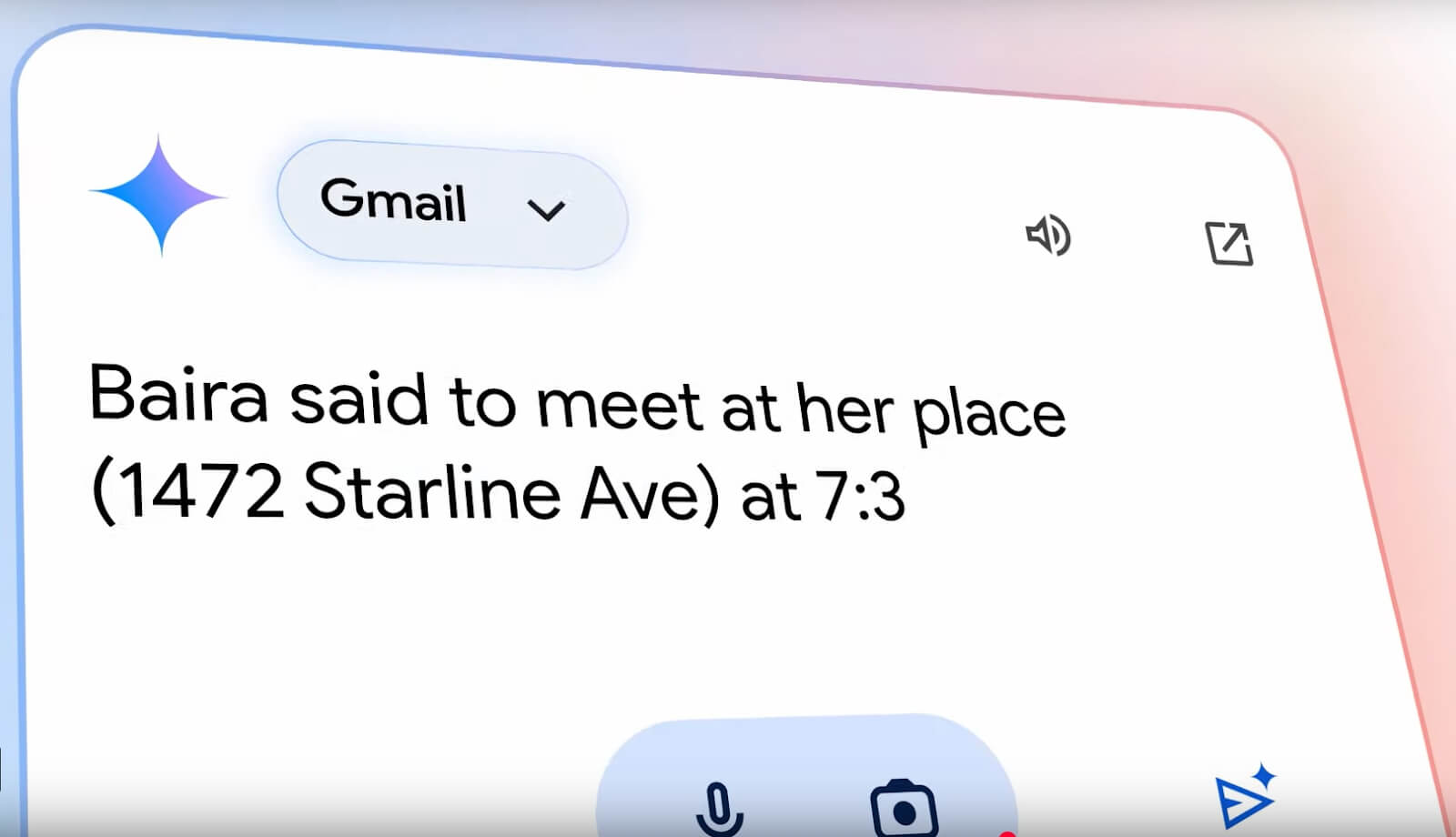
Building your own AI assistant isn't as complex as it sounds. Whether you're a non-technical professional wanting a customized helper or a developer seeking full control, there are paths for every skill level. Below are three approaches to creating a personal AI assistant tailored to your specific needs.
Option 1: No-Code Approach Using Existing Platforms
Best for: Non-technical users who want a customized assistant without writing code.
Step 1: Choose a foundation platform
Start with a platform that offers customization without coding. Tools like ChatGPT's Custom GPTs (with a Plus subscription) or Google's Gems allow you to create tailored versions of existing AI assistants. These let you define instructions, upload knowledge files, and set specific behaviors—all through simple configuration interfaces.
Step 2: Define your assistant's purpose
Be specific about what you want your assistant to handle. For example:
- "Draft weekly status reports in my writing style using bullet points from Slack and email"
- "Summarize long email threads and suggest three possible replies"
- "Extract action items from meeting transcripts and add them to my task manager"
Step 3: Provide knowledge and examples
Upload documents, past emails, or writing samples that reflect your preferences. Include examples of how you want tasks completed—this helps the assistant understand your tone, formatting preferences, and decision-making patterns.
Step 4: Connect to your tools
Use automation platforms like Zapier or Make to connect your custom assistant with the apps you use daily. For instance, you can create workflows where emails trigger your assistant to draft replies, or meeting transcripts automatically get summarized and saved to your notes app.
Step 5: Test and refine
Start with simple tasks and gradually expand. Provide feedback when outputs miss the mark—most platforms allow you to refine instructions based on what works.
Option 2: Low-Code Approach Using No-Code Automation Tools
Best for: Users comfortable with basic automation who want more control over workflows.
Step 1: Set up a central automation hub
Platforms like Zapier or Make serve as the brain connecting your assistant to your tools. Create an account and familiarize yourself with creating basic workflows (called Zaps or scenarios).
Step 2: Design your assistant's capabilities
Map out specific workflows you want automated. For example:
- When a new email arrives from a client → AI drafts a response → you review and send
- When a meeting ends in Google Meet → transcript is saved → AI generates summary → summary is added to Notion
- When you voice-record a task idea → AI extracts action items → items are added to your to-do list with deadlines
Step 3: Incorporate AI steps
Both Zapier and Make now offer built-in AI steps. You can add prompts like "Summarize this email thread in three bullet points" or "Extract action items from this text and format them as a list." The AI step processes the content and passes the result to the next action.
Step 4: Create triggers and actions
Set up triggers (e.g., new email, new calendar event, new file in Google Drive) that automatically kick off your AI-powered workflows. The system runs in the background, so your assistant is always working even when you're not actively engaging.
Step 5: Monitor and optimize
Check your workflows weekly to ensure they're running correctly. Tweak prompts if outputs aren't meeting expectations, and gradually add more complex automations as you grow comfortable.
Option 3: Developer Approach Using APIs and Open-Source Tools
Best for: Technical users who want complete control and data privacy.
Step 1: Choose your infrastructure
Decide whether to host locally or in the cloud. For maximum privacy, OpenClaw offers an open-source framework that runs entirely on your own machine. It supports Mac, Linux, and Windows, and interacts through messaging apps like Slack, Telegram, or iMessage.
Step 2: Select your AI model
You'll need access to a large language model. Options include:
- OpenAI API (GPT-4 or newer)
- Anthropic API (Claude models)
- Open-source models like Llama or Mistral that you can run locally for complete privacy
Step 3: Configure your assistant's capabilities
With OpenClaw or similar frameworks, you define what your assistant can do:
- Calendar management (read/write events)
- Email handling (draft, send, organize)
- File operations (read, write, search)
- Web browsing and research
- App control (open applications, run commands)
Step 4: Set up integration channels
Configure your assistant to communicate through platforms you already use. OpenClaw, for instance, connects to messaging apps so you can interact with your assistant naturally without opening a separate interface.
Step 5: Establish privacy and security protocols
Since you control everything, implement your own security measures:
- Set access permissions for sensitive data
- Create backup procedures for your assistant's memory
- Establish authentication for critical actions (like sending emails or accessing financial data)
Step 6: Iterate and expand
Start with basic commands and gradually add capabilities. Because you have full access to the codebase, you can customize every aspect of how your assistant behaves and what it can access.
Future Trends

- From Reactive Tools to Proactive Teammates
Assistants will stop waiting for commands and start anticipating needs. They will notice patterns, predict what you need next, and take initiative—like scheduling follow-ups without being asked or surfacing information before you realize you need it.
- Seamless Cross-Platform Interaction
Future assistants will navigate any application, move data between tools, and execute complex workflows across your entire digital ecosystem. You won't need to switch between apps—your assistant will do it for you.
- Deeper Contextual Intelligence
Assistants will understand nuance by synthesizing data from your calendar, emails, habits, and preferences. They will know what "prepare for this meeting" means based on who you're meeting with and what's at stake.
- Autonomous Multi-Agent Systems
Complex tasks will be handled by teams of AI agents working together—one researching, another scheduling, a third managing logistics—while you simply review the final plan. Your bandwidth multiplies without extra effort.
- Work-Life Integration with Boundaries
Assistants will seamlessly bridge professional and personal domains while respecting boundaries. They will shield you from work during family time but know when to interrupt for truly urgent matters.
- Predictive Assistance
Beyond reacting, assistants will anticipate—scheduling health check-ups before you remember, ordering supplies before they run out, and spotting career opportunities aligned with your goals.
- Enterprise-Grade Privacy and Customization
Users will train personalized AI models without coding. Your data stays yours with strong encryption and clear privacy guarantees. Specialized AI personas will manage different life domains with customized knowledge.
- Ethical Frameworks and Human Control
As autonomy increases, so do safeguards—transparent decision logs, graduated autonomy controls, and clear override mechanisms ensure assistants remain aligned with human values.
- The Ultimate Goal: Reclaiming Time
All these trends serve one purpose: freeing humans from digital busywork so you can be present for what truly matters—your work, your loved ones, and yourself.
Conclusion
AI personal assistants have evolved from novelty tools into essential productivity partners. By handling repetitive tasks, they give you back focused time for deep work and personal restoration—reducing cognitive load while helping you maintain work-life boundaries.
The key is starting now: identify your biggest time sink, choose an assistant that addresses that pain point, and use it consistently. Technology should work for you, not the other way around. With the right assistant, you can accomplish more meaningful work while actually working less.