




 Table of Contents
Part 1. 10 Best Laptops for Cricut Makers
Part 2. How Should We Select and Test the Best Laptops for Cricut
Part 3. Buying Guide: How to Find the Best Laptop for Cricut
Part 4. FAQs: Which laptops work best with Cricut?
Part 1. 10 Best Laptops for Cricut Makers
Cricut makers are creative individuals who love crafting, designing, and creating unique projects. To fuel their creativity, they require a reliable and powerful laptop that can handle the demands of Cricut software and design applications. In this guide, we will explore the top 10 laptops suitable for Cricut makers in 2023-2024, considering various categories such as overall performance, value, touchscreen capability, battery life, 2-in-1 functionality, budget options, compatibility with MacBook Pro, basic options, double-screen laptops, and other notable contenders in the market.
1. Best Overall: Dell XPS 15
The Dell XPS 15 stands out as the best overall laptop for Cricut makers due to its exceptional performance and stunning display. Powered by Intel Core i7 or i9 processors, it offers seamless multitasking and smooth handling of graphics-intensive tasks. The 15.6-inch InfinityEdge display with 4K resolution showcases intricate designs with utmost clarity, making it an ideal choice for Cricut projects.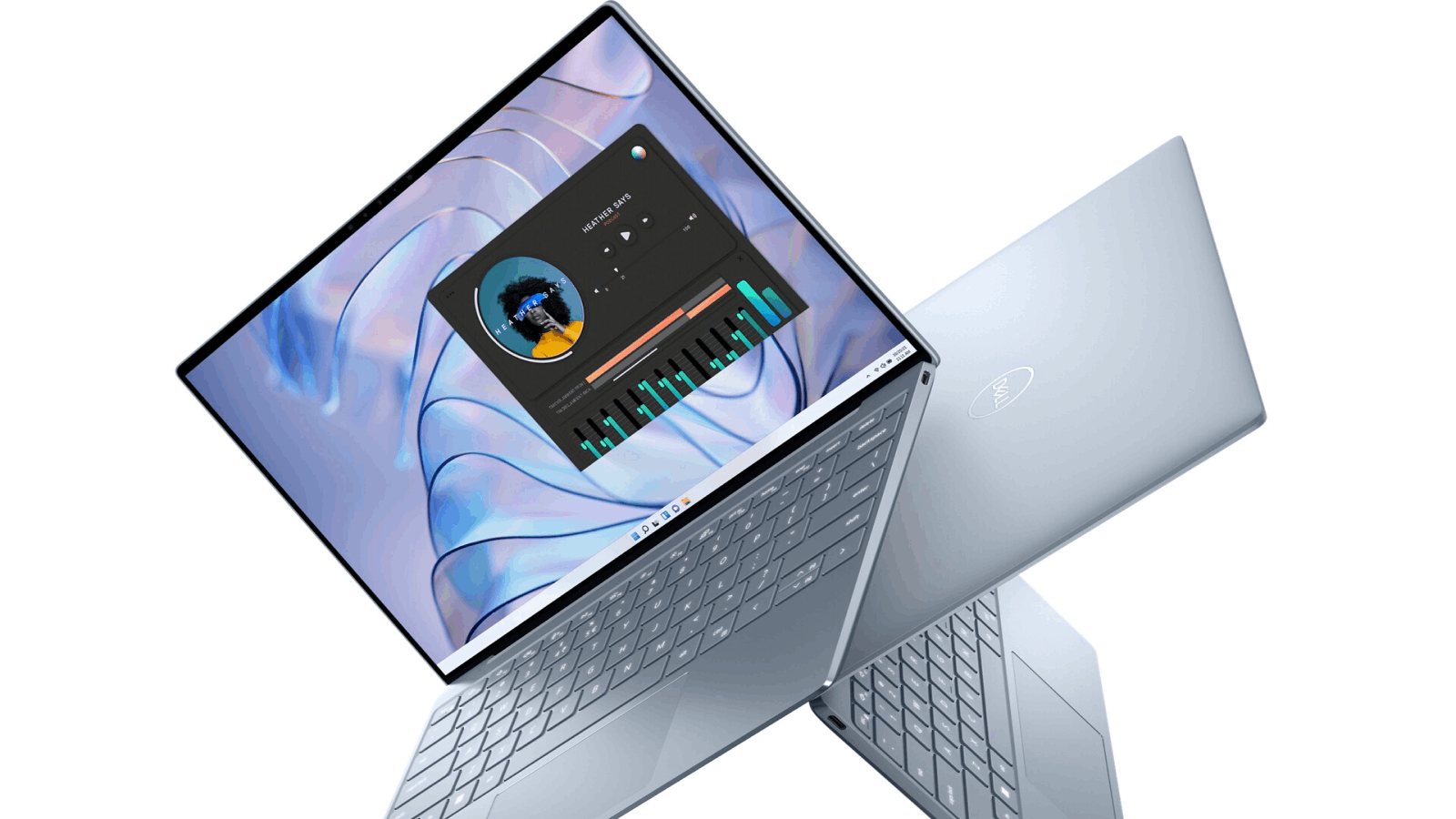
See OEM and private label suppliers offering similar products:
Stock 17.3'' intel Gaming Laptop IPS 17 core 10 CPU with RGB backlight keyboard notebook computer for games
Customization Laptop 15.6 Inch Hot Selling Notebook Students Notebook Netbook Light Laptop SSD Laptop
2. Best Value: Acer Aspire 5
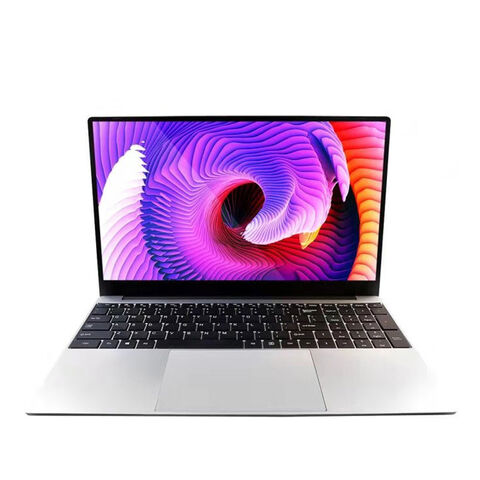
The Acer Aspire 5 provides excellent value for money with its powerful performance and affordable price. Equipped with AMD Ryzen processors and ample RAM, it ensures smooth operation of Cricut software. The 15.6-inch Full HD display offers vibrant colors and crisp graphics, while its long battery life ensures uninterrupted crafting sessions.
3. Best Touchscreen: HP Spectre x360
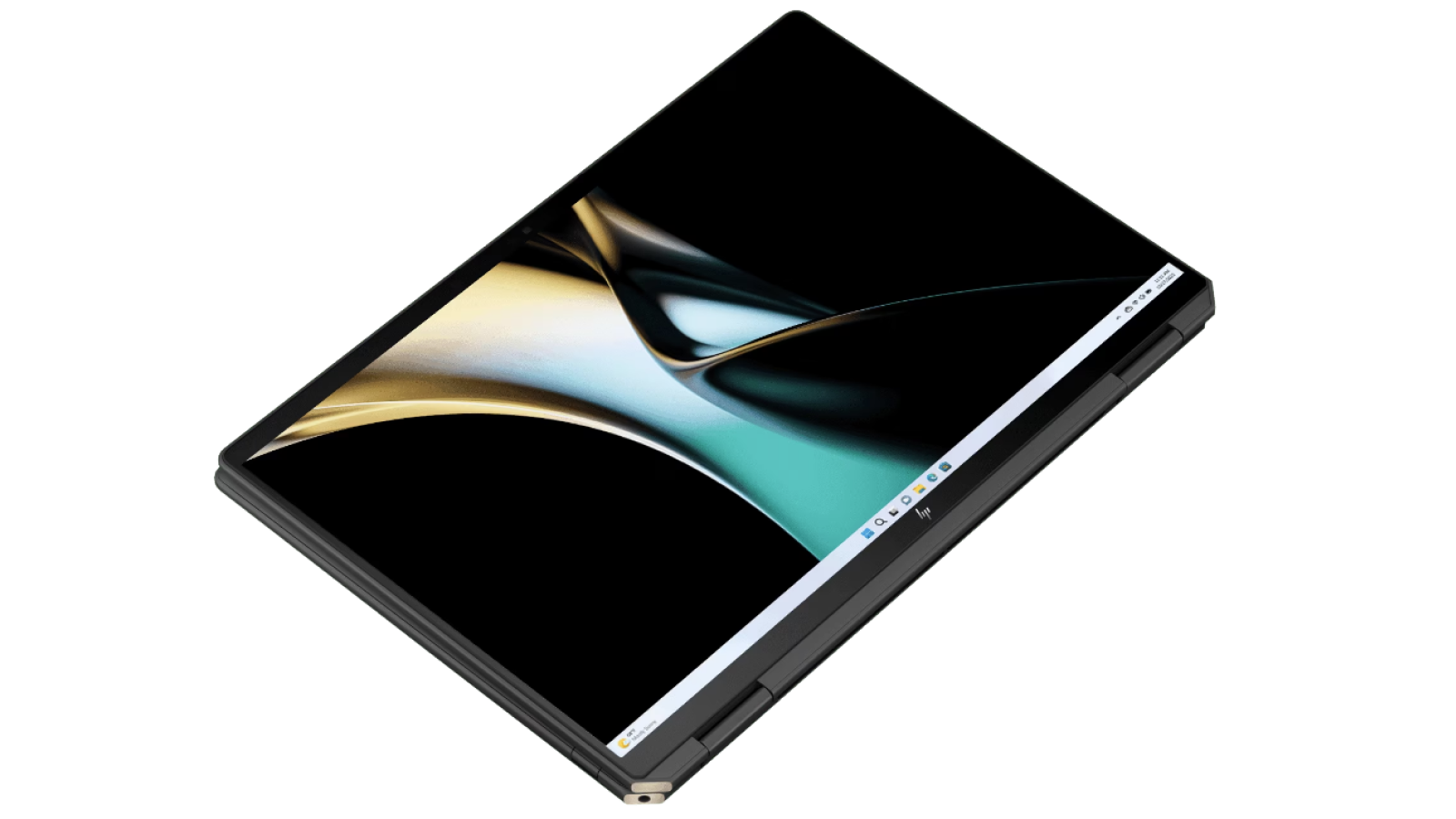 For Cricut makers who prefer the ease and precision of touchscreen functionality, the HP Spectre x360 is an outstanding choice. This 2-in-1 laptop features a responsive 13.3-inch touch display that can be rotated and used in tablet mode for convenience. With its powerful hardware, including Intel Core i7 processors and SSD storage, it delivers exceptional performance for Cricut software.
4. Best Battery Life: Lenovo ThinkPad X1 Carbon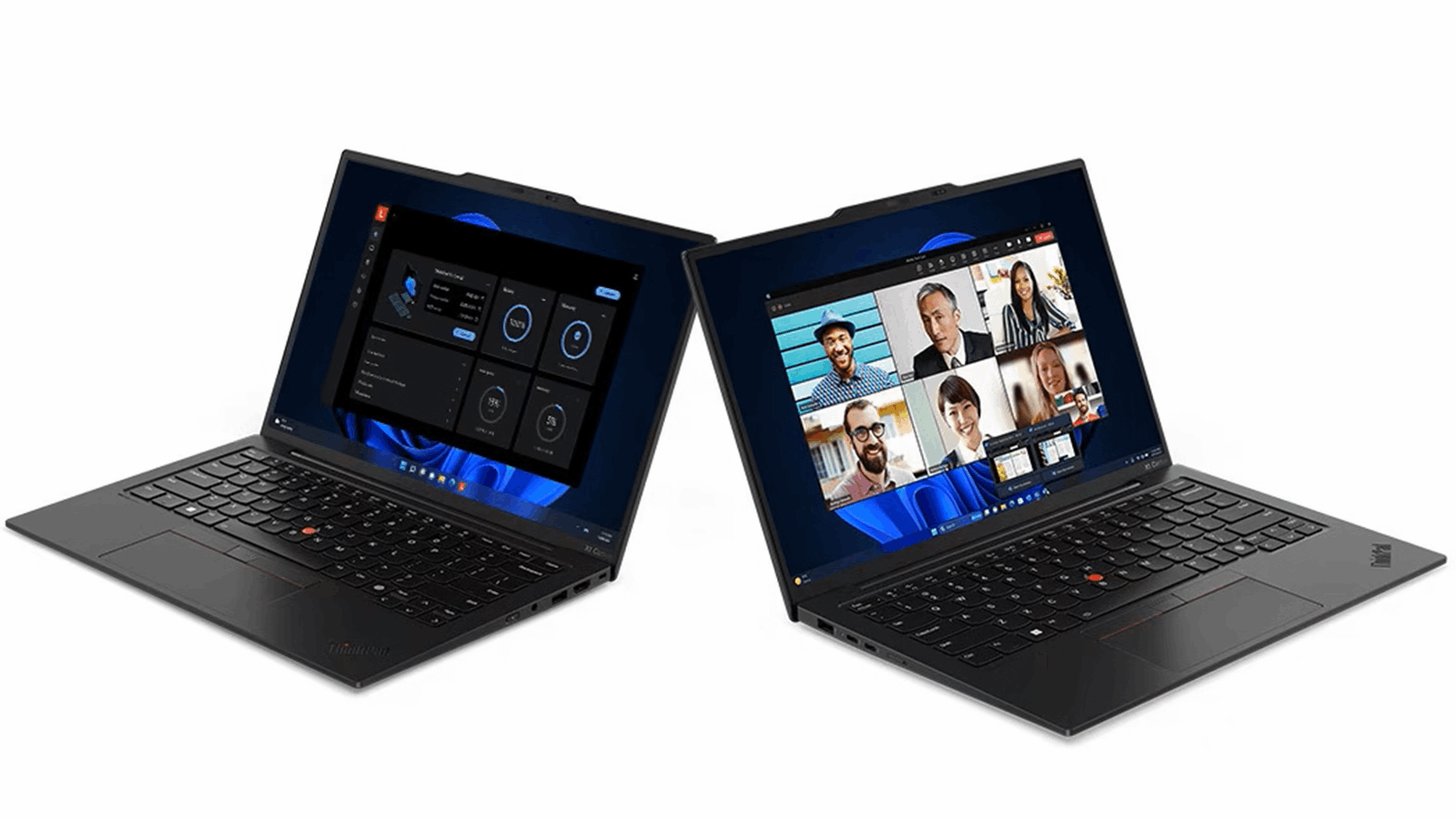
The Lenovo ThinkPad X1 Carbon boasts an impressive battery life, making it an excellent option for Cricut makers who spend long hours crafting. With up to 19.5 hours of battery life, you can work on your projects without worrying about running out of power. Its lightweight design, sturdy build quality, and powerful specifications make it an ideal laptop for on-the-go creators.
5. Best 2-in-1: Microsoft Surface Book 3
The Microsoft Surface Book 3 is a versatile 2-in-1 laptop that offers the flexibility Cricut makers may require. Its detachable display can be used as a tablet, allowing for precise design work. Powered by Intel Core i7 processors and featuring a high-resolution PixelSense display, it delivers top-notch performance and vivid visuals.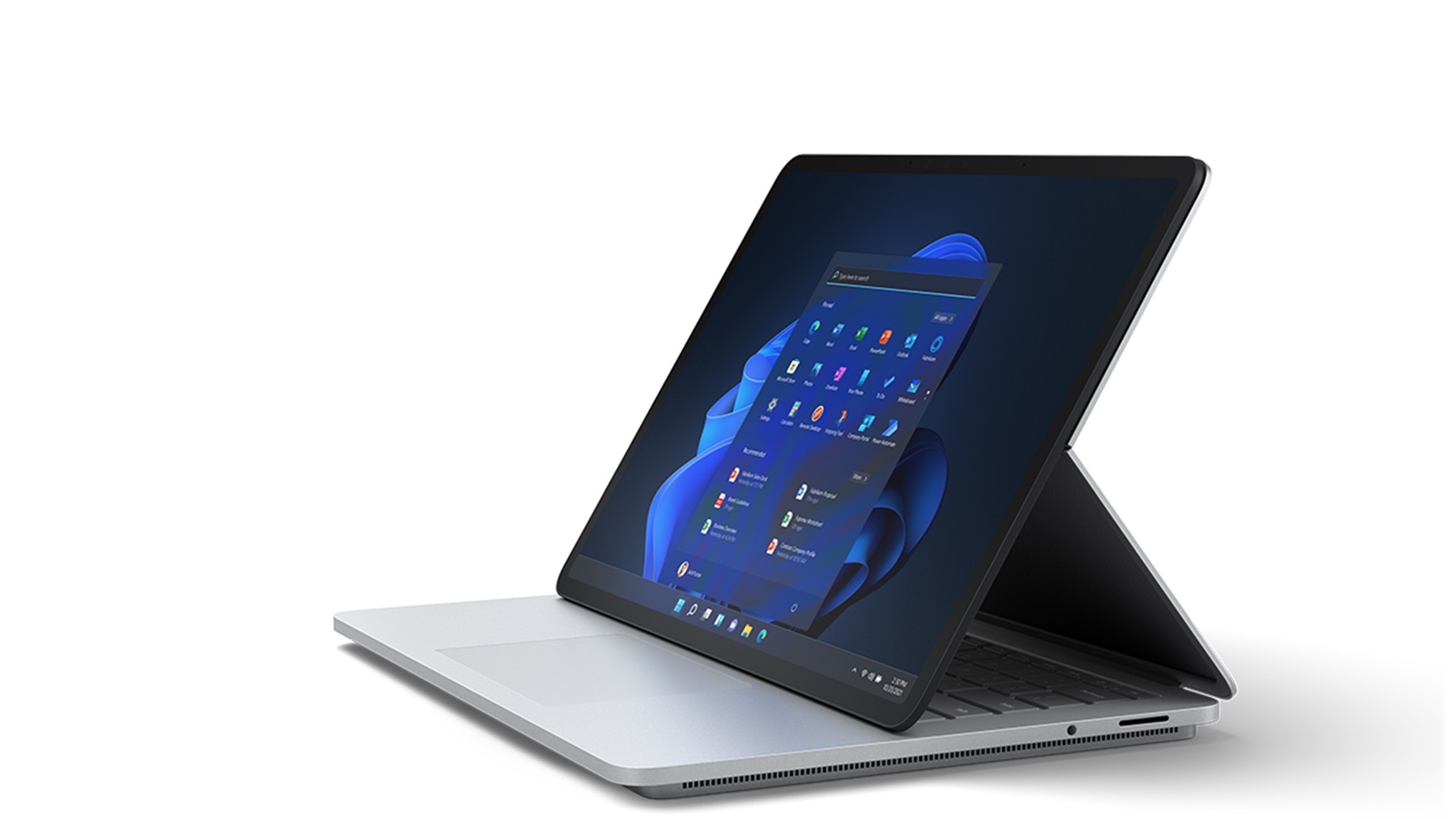
See OEM and private label suppliers offering similar products:
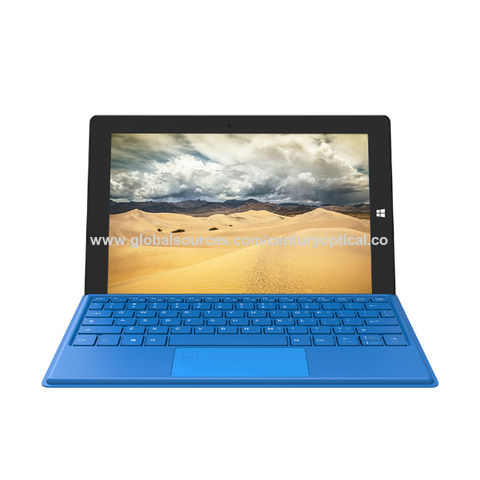
2 in 1 Surface Pro 11.6 inch Windows 10 laptop N4020 Ram 8GB Rom 256GB tablet PC with keyboard
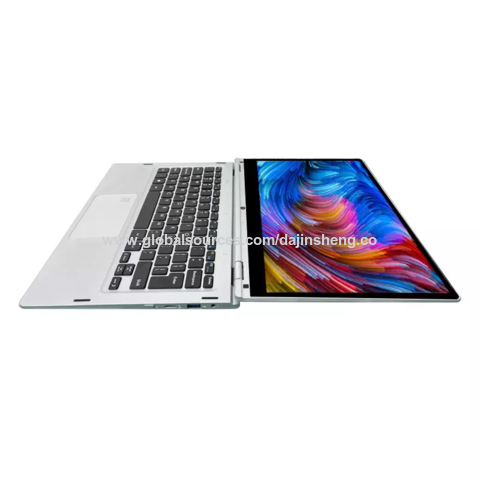
Special offer wholesale factory 11.6/13.3inch surface yoga tablet pc mini laptop LCD touch screen rotating 360 degree laptop
6. Best Budget Option: ASUS VivoBook 15
For Cricut makers on a budget, the ASUS VivoBook 15 is a solid choice. It offers a balance of performance and affordability, featuring AMD Ryzen processors and a spacious display. Despite its budget-friendly price, it provides smooth performance for Cricut software and accommodates various design applications.
See OEM and private label suppliers offering similar products:
14.1 inch 512 SSD OEM laptop computer Ultra slim mini notebook win10 netbook for home and office
7. Best MacBook Pro: Apple MacBook Pro 16-inch
MacBook Pro users in search of the perfect laptop for Cricut projects will find the 16-inch model to be a powerful and capable machine. With its high-resolution Retina display, fast processors (up to Intel Core i9), and ample storage options, it handles Cricut software with ease. The precise trackpad and macOS compatibility further enhance the user experience.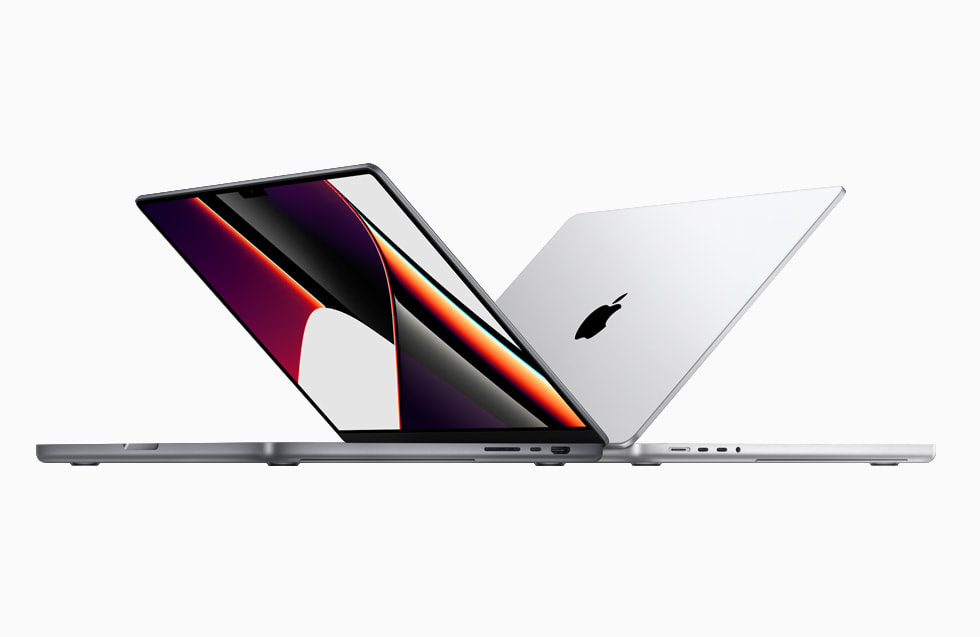
See OEM and private label suppliers offering similar products:
15.6 inch touch portable monitor for macbook pro multitouch pc monitoe display
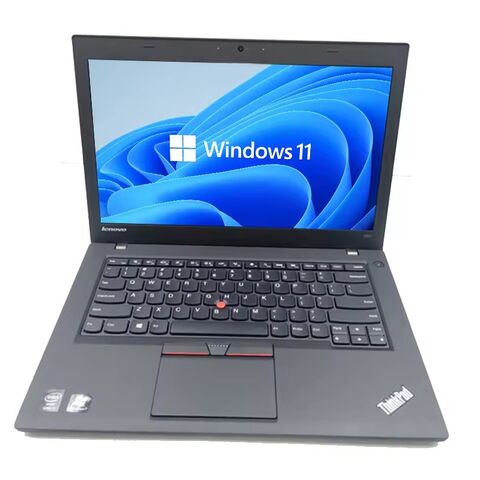
Stock Original Used macbooks clean laptop for air pro 11 13 15 inch second hand i5 i7 for macbook
8. Best Basic Option: HP Pavilion 15
If you are a Cricut beginner or require a laptop primarily for simple crafting tasks, the HP Pavilion 15 is a suitable choice. It offers adequate performance for basic design applications and Cricut software, with options ranging from AMD Ryzen to Intel Core processors. The 15.6-inch display provides a comfortable viewing experience for your projects.
9. Best Double Screen: ASUS ZenBook Pro Duo
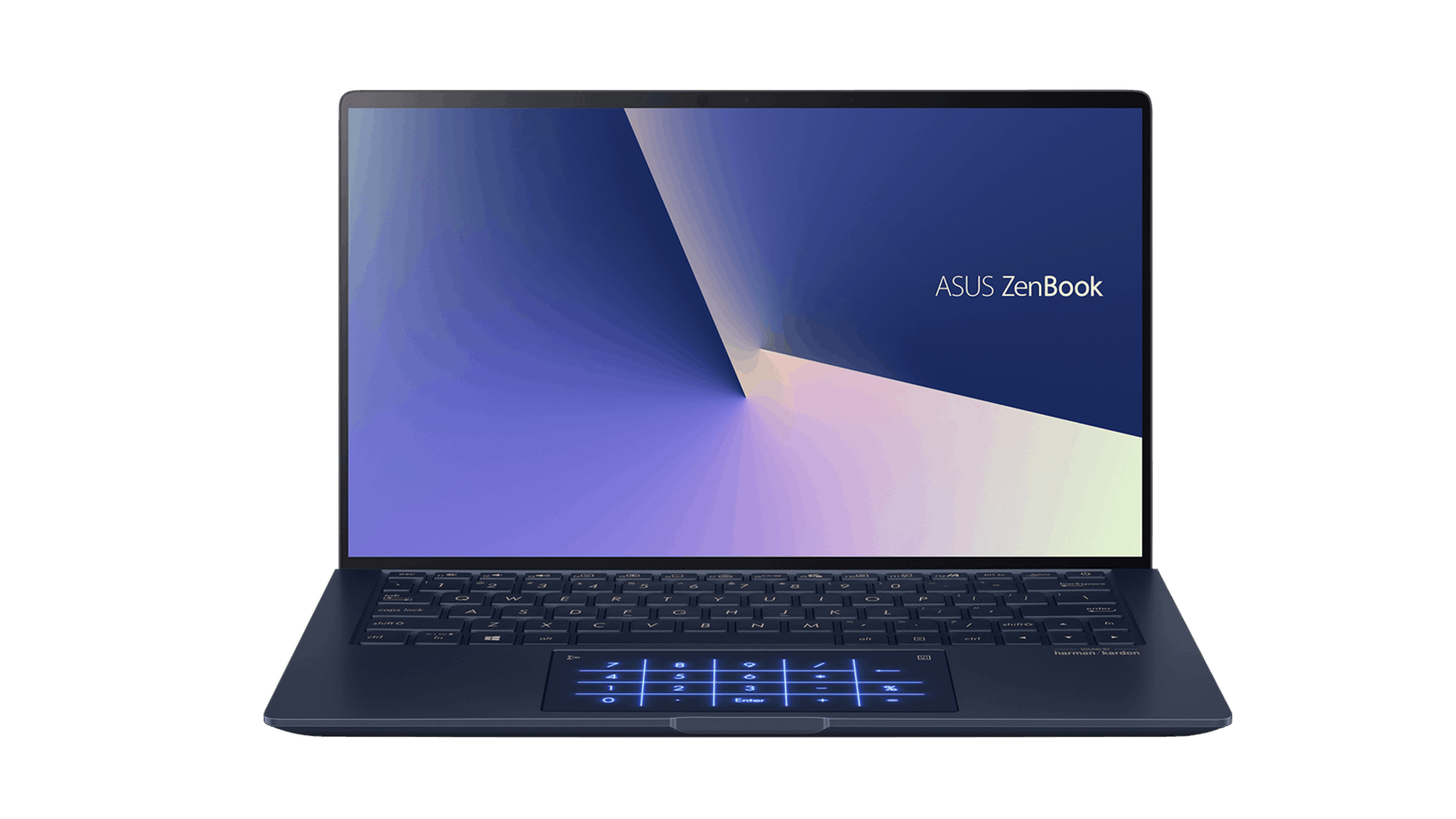
For Cricut makers who value productivity and multitasking, the ASUS ZenBook Pro Duo's dual-screen design is a game-changer. The main 15.6-inch OLED display is complemented by a secondary 14-inch touch screen called the ScreenPad Plus, which serves as an extended workspace for tools, references, or additional applications. Powered by high-performance Intel Core processors and featuring a premium design, it excels in both creativity and functionality.
10. Best of the Rest: MSI Creator 17
The MSI Creator 17 stands out as a strong contender for Cricut makers due to its impressive hardware, color-accurate display, and powerful graphics capabilities. Equipped with Intel Core i7 or i9 processors and an NVIDIA GPU, it smoothly handles resource-intensive design software. The 17.3-inch 4K display with MSI's True Pixel technology delivers excellent color accuracy, making it an ideal choice for Cricut projects that require precise color.
Part 2. How to Select and Test the Best Laptops for Cricut
1. Determine System Requirements
- Cricut software: Identify the minimum and recommended system requirements for running Cricut Design Space or other related software. Check the official website or documentation for specific requirements.
2. Consider Essential Features
- Processor: Look for laptops with high-performance processors like Intel Core i5, i7, or i9, or AMD Ryzen processors, as they can handle resource-intensive design applications.
- RAM: Opt for laptops with a minimum of 8GB of RAM, although 16GB or more is recommended for smoother multitasking and optimal performance.
- Storage: Choose a laptop with ample storage, preferably a solid-state drive (SSD) for faster data access and application loading times.
- Graphics: While dedicated graphics are not essential for Cricut software, a laptop with integrated graphics should be sufficient for most Cricut design work.
- Display: Consider laptops with a high-resolution and color-accurate display for accurate visualization of designs. A minimum of Full HD (1920x1080) resolution is recommended.
3. Budget Considerations
- Determine your budget range as it will impact the available options. Balance the desired features and performance within your budget to select the best laptop.
4. Research and Compare
- Read reviews, ratings, and user experiences to gain insights into the performance, reliability, and compatibility of various laptop models with Cricut software.
- Compare specifications, price points, and additional features to shortlist laptops that best meet your requirements.
5. Test Performance and Compatibility
- Once you acquire a potential laptop, perform the following tests to gauge its performance and compatibility with Cricut software
a. Install and run Cricut Design Space: Ensure that the laptop can smoothly install and launch the Cricut software without any compatibility issues.
b. Load and edit designs: Test the laptop's performance by opening and editing pre-existing Cricut projects. Pay attention to any lag or delays during design manipulation.
c. Export and print designs: Export Cricut projects and test the printing functionality to ensure accurate and efficient design output.
d. Multitasking capability: Simulate real-world usage scenarios by running Cricut software simultaneously with other applications to determine the laptop's multitasking capabilities.
6. Consider Connectivity and Ports
- Ensure that the laptop has the necessary ports and connectivity options for connecting the Cricut machine, such as USB ports or Bluetooth capabilities.
7. Warranty and Customer Support
- Check if the laptop comes with a warranty and whether the manufacturer provides reliable customer support for any technical issues that may arise.
By following these steps, Cricut makers can effectively select and test the best laptops that meet their specific requirements and provide a seamless experience for their crafting and design projects.
You May also Like: General Laptop Guides and Comparisons
- Best Chinese Laptop Brands
- Heat Sink for Laptops
- Desktop vs Laptop CPUs
- Dell Latitude vs Precision
- Refurbished Laptops: Pros & Tips
- 1TB Laptops for Storage
- Gaming Laptops Guide
- Quiet Gaming Laptops
- Laptops for Microsoft Office
- Portable Dual-Screen Monitors
Part 3. Buying Guide: How to Find the Best Laptop for Cricut
If you're looking to find the best laptop for Cricut, there are several factors you should consider to ensure you make the right choice. Here is a buying guide to help you find the best laptop for your Cricut needs
1. Processor
The processor is a crucial component for running Cricut software smoothly. Look for laptops with Intel Core i5, i7, i9, or AMD Ryzen processors. These processors offer sufficient power to handle the demands of Cricut software and other design applications.
2. RAM
Choose a laptop with at least 8GB of RAM, although 16GB or more is recommended. Having more RAM allows for smoother multitasking and improves the performance of resource-intensive design applications.
3. Storage
Opt for a laptop with a solid-state drive (SSD) rather than a traditional hard drive. SSDs provide faster data access and application loading times, which will enhance your Cricut experience. Look for laptops with ample storage, such as 256GB or higher, to accommodate your design projects and other files.
4. Graphics
While dedicated graphics are not necessary for Cricut software, a laptop with integrated graphics should be sufficient for most design work. However, if you plan to do some heavy graphic design or 3D work, consider a laptop with a dedicated graphics card.
5. Display
A high-resolution display is essential for accurately visualizing your designs. Look for laptops with a minimum resolution of 1920x1080 (Full HD). Additionally, consider displays with good color accuracy to ensure that the colors in your designs are represented accurately.
6. Touchscreen and Pen Support
A laptop with a touchscreen provides an intuitive and interactive experience when using design applications. Some Cricut makers find it helpful to use a digital pen for precise design work. If this is important to you, look for laptops with touchscreen functionality and support for digital pens.
7. Battery Life
Cricut projects can be time-consuming, so having good battery life is crucial, especially if you work on the go. Look for laptops with long battery life, ideally lasting at least 8 hours or more, to ensure uninterrupted crafting sessions.
8. Portability
Consider the size and weight of the laptop, especially if you plan to carry it around frequently. Opt for a lightweight and compact laptop that is easy to transport, especially if you attend workshops or craft events.
9. Connectivity and Ports
Ensure that the laptop has the necessary ports and connectivity options to connect your Cricut machine, such as USB ports or Bluetooth capabilities. Check if the laptop has an HDMI port if you plan to connect it to an external monitor.
10. Budget
Finally, consider your budget. Determine how much you are willing to spend and find a laptop that offers the best specifications and features within your budget range.
11. Reviews and Recommendations
Read reviews and seek recommendations from fellow Cricut makers or trusted sources to get insights into specific laptop models' performance and reliability for Cricut projects.
Remember to prioritize the factors that are most important to your specific needs. By considering these factors and taking your time to research and compare different laptop models, you can find the best laptop that will enhance your Cricut crafting experience.
You May also Like: Specialty Laptops and Accessories
- Laptops for Crafting
- Dropshipping Laptops
- Telehealth Laptops
- Revit Laptops
- Cricut Maker Laptops
- Small Business Laptops
- Laptops for Multiple Monitors
- Charging Laptop Batteries Externally
- Stylish Puffy Laptop Sleeves
- Western Laptop Bags
Part 4. FAQ
Which laptops work best with Cricut?
When it comes to choosing a laptop for Cricut, there are a few key factors to consider. First and foremost, you'll want a laptop with a decent amount of processing power. This will ensure that your Cricut software runs smoothly and doesn't lag or freeze during use. Look for laptops with at least an Intel i5 or AMD Ryzen 5 processor, as these should provide sufficient performance for Cricut tasks.
Additionally, a good amount of RAM is important for multitasking and handling large Cricut projects. Aim for a minimum of 8GB of RAM, but if you plan on working with complex designs, consider upgrading to 16GB or more.
In terms of storage, it's recommended to opt for a laptop with an SSD (Solid State Drive) rather than a traditional HDD (Hard Disk Drive). SSDs offer faster read and write speeds, which can greatly improve the overall performance of your Cricut software.
Furthermore, having a dedicated graphics card is not a necessity for Cricut, as most laptops come with integrated graphics that are capable of handling the software's requirements. However, if you plan on using your laptop for other graphic-intensive tasks, such as gaming or video editing, then investing in a laptop with a discrete graphics card would be beneficial.
Some laptops that are frequently recommended for Cricut include the Dell XPS 15, HP Envy x360, and Lenovo ThinkPad series. However, it's always a good idea to check the system requirements of the specific Cricut machine you're using and compare them with the laptop specifications before making a purchase.
Overall, a laptop with a decent processor, sufficient RAM, SSD storage, and a reliable brand should work well with Cricut's software.
What type of computer do you need for Cricut Design Space?
For Cricut Design Space, you will need a computer that meets the necessary system requirements to run the software smoothly. The specific requirements may vary slightly depending on the version of Design Space you are using, but here are the general guidelines to follow.
Firstly, the computer should have a compatible operating system. Currently, Cricut Design Space is compatible with Windows 8 or later, and Mac OS X 10.13 or later. Ensure that your computer's operating system meets these requirements.
Secondly, you will need a reliable internet connection since Design Space operates primarily online. A high-speed internet connection is recommended for the best experience.
In terms of hardware, you should have a computer with a processor that meets or exceeds the minimum requirements. Cricut recommends an Intel or AMD processor with a speed of 2.4 GHz or higher. Similarly, having at least 4GB of RAM is required, though 8GB or more is recommended for smoother performance.
Your computer should have available USB ports to connect your Cricut machine. Additionally, it's important to note that Design Space is a graphics-intensive software, so a computer with a dedicated graphics card or a capable integrated graphics solution is beneficial, especially when working with complex designs.
Lastly, make sure that your computer has the latest version of a compatible web browser, such as Google Chrome, Mozilla Firefox, or Safari.
By ensuring that your computer meets these requirements, you can have a seamless experience using Cricut Design Space.
Do you need a special computer for a Cricut?
No, you do not necessarily need a special computer. However, you need a computer that meets the minimum system requirements for running Cricut Design Space or any other Cricut software smoothly.
Cricut Design Space is compatible with both Windows and Mac operating systems. For Windows, it is compatible with Windows 8 or later versions, while for Mac, it supports Mac OS X 10.13 or later.
Therefore, any modern computer running these operating systems should be able to handle the Cricut software without any issues.
In terms of hardware, you will need a computer with a decent processor, preferably an Intel or AMD processor with a speed of 2.4 GHz or higher. The computer should also have a minimum of 4GB of RAM, though it is recommended to have at least 8GB or more for better performance.
Additionally, you will need an internet connection to access Cricut Design Space, as it is primarily an online application. A high-speed internet connection is beneficial for a smooth experience.
It's also worth noting that you will need available USB ports on your computer to connect your Cricut machine.
While a dedicated graphics card is not a requirement, it can be beneficial if you plan to work with complex designs or use the computer for other graphic-intensive tasks.
Overall, as long as your computer meets the necessary system requirements, you should be able to use a standard laptop or desktop computer for your Cricut projects.
Can I use a Chromebook with a Cricut?
Yes, you can use a Chromebook for Cricut, but with some limitations. Cricut
Design Space is available as a web-based application, which means it can be accessed through a compatible web browser on a Chromebook. However, Cricut officially supports Design Space on Windows and Mac operating systems, so there may be some differences and limitations when using a Chromebook.
One limitation of using a Chromebook for Cricut is that certain features may not be available or may not work as efficiently compared to using a Windows or Mac computer. Chromebooks have limited processing power and storage compared to traditional laptops, which can affect the performance of Cricut software, especially when working on complex designs or large projects.
Another consideration is that Chromebooks have a different file system compared to Windows or Mac computers, which may cause compatibility issues when uploading and accessing project files in Cricut Design Space. You may need to transfer files to a compatible format or use cloud storage solutions to bridge this gap.
Despite these limitations, many users have successfully used Chromebooks with Cricut for basic design and cutting tasks. If you primarily work on simpler projects or don't require advanced features, a Chromebook can be a cost-effective option.
To use Cricut on a Chromebook, ensure that your Chromebook is up to date with the latest operating system version and that you have a reliable internet connection. Access Design Space through a compatible web browser, such as Google Chrome, and follow the on-screen instructions to set up and connect your Cricut machine.
While using a Chromebook for Cricut is possible, it's important to consider the limitations and make sure it aligns with your specific needs and requirements for Cricut projects.
Can I connect my Cricut to my laptop wirelessly?
Yes, you can connect your Cricut machine to your laptop wirelessly in most cases. Cricut machines, such as the Explore Air 2 or the Maker, offer wireless capabilities that allow you to connect and control the machine without the need for a physical USB connection.
To set up a wireless connection between your Cricut machine and your laptop, you will need to ensure that both devices are connected to the same Wi-Fi network.
First, turn on your Cricut machine and follow the on-screen instructions to connect it to Wi-Fi. This process can vary slightly depending on the model of your Cricut machine, but typically, you will navigate through the settings menu on the machine's display.
Next, on your laptop, make sure you have the latest version of Cricut Design Space installed. Launch the Design Space software and sign in to your Cricut account.
In Design Space, click on the "New Project" button to start a new project or open an existing one. Once you're in the design canvas, click on the "Make It" button to proceed to the cutting mat preview screen.
In the cutting mat preview screen, Design Space will detect your Cricut machine if it is connected to the same Wi-Fi network. Click on the machine icon or dropdown menu to select your machine.
After selecting your machine, you can proceed with loading the material onto your Cricut machine and follow the on-screen instructions to complete the cutting process.
It's worth noting that the wireless connection between your Cricut machine and laptop may experience occasional hiccups or connectivity issues, especially when the Wi-Fi signal is weak or there is interference. If you encounter any issues, ensure that both devices are connected to a stable Wi-Fi network and try restarting the Cricut machine and Design Space software.
Overall, wireless connectivity provides convenient and cable-free control over your Cricut machine, making it easier to work on projects without being restricted by USB cables.
What are the computer hardware requirements for a Cricut?
To run Cricut software smoothly and ensure optimal performance, your computer should meet the minimum hardware requirements recommended by Cricut.
The key hardware requirements for Cricut are
1. Processor: Cricut recommends an Intel or AMD processor with a minimum speed of 2.4 GHz. A faster processor will offer better performance and handle complex designs more efficiently.
2. RAM: Cricut requires a minimum of 4GB of RAM, but it is recommended to have at least 8GB or more for smoother multitasking and handling larger projects. More RAM allows for faster processing and prevents lagging or freezing during Cricut tasks.
3. Storage: While Cricut does not specify a specific storage requirement, it is generally recommended to have sufficient storage space for installing and running the software, as well as storing project files. An SSD (Solid State Drive) is preferable for faster read and write speeds, which can enhance overall performance.
4. Graphics: Cricut's software does not require a dedicated graphics card. Most modern computers come with integrated graphics that are capable of handling Cricut's requirements. However, if you plan to work with complex designs or use your computer for other graphic-intensive tasks, a dedicated graphics card may offer improved performance.
5. USB Ports: Your computer should have available USB ports to connect your Cricut machine. These ports are necessary for establishing a physical connection between your computer and the Cricut machine.
6. Internet Connection: A reliable internet connection is essential for accessing Cricut Design Space, which is primarily an online application. A high-speed internet connection will ensure smooth syncing, updating, and sharing of projects.
It's important to note that these hardware requirements may vary slightly depending on the specific Cricut machine you are using and the complexity of your projects. It's always recommended to check the system requirements provided by Cricut for your specific machine model to ensure compatibility.
By meeting or exceeding these hardware requirements, you can ensure that your computer is capable of running Cricut software efficiently and experiencing optimal performance while working on your projects.
Why is Cricut Design Space so slow on my laptop?
There can be several factors contributing to Cricut Design Space running slow on your laptop. Here are a few possible reasons and potential solutions
1. Internet Connection: A slow or unstable internet connection can affect the performance of Cricut Design Space as it heavily relies on online syncing and communication. Ensure that you have a stable and high-speed internet connection to minimize potential slowdowns. Consider restarting your router or contacting your internet service provider if the issue persists.
2. System Resources: Insufficient system resources, such as CPU (Central Processing Unit) power and RAM (Random Access Memory), can cause Design Space to run slowly. Close any unnecessary applications and background processes to free up system resources. If possible, consider upgrading your laptop's hardware, such as increasing RAM.
3. Browser Compatibility: Design Space works best with the latest versions of compatible web browsers such as Google Chrome, Mozilla Firefox, or Safari. Ensure that you are using an up-to-date browser and clear your browser cache regularly to optimize performance. You can also try using a different browser to see if it improves the speed.
4. Design Complexity: If you are working with large or complex designs, it can cause lag or slow rendering in Design Space. Simplify or break down complex designs into smaller elements, reduce the number of layers, or work on designs with fewer images to improve performance.
5. Software Updates: Ensure that you have the latest version of Cricut Design Space installed. Regularly check for and apply any available software updates. Updates often include bug fixes and performance improvements that can enhance the overall speed and stability of the application.
6. Device Compatibility: It's possible that your laptop's specifications may not meet the recommended requirements for optimal performance with Design Space. Check the system requirements provided by Cricut and compare them to your laptop's specifications. If your laptop falls below the recommended specifications, you may experience slower performance.
If the issue persists despite trying the above solutions, you can reach out to Cricut customer support for further assistance. They can provide specific troubleshooting steps based on your unique situation and help resolve any underlying issues causing the slowness.
What are the right specs for the best computer for Cricut Design Space?
The recommended computer specifications for the best performance with Cricut Design Space are as follows
1. Processor (CPU): An Intel or AMD processor with a recommended clock speed of 2.8 GHz or higher is ideal. Look for processors with multiple cores for better multitasking capabilities.
2. RAM (Memory): Cricut recommends a minimum of 8GB of RAM. However, for smoother performance, especially when working with larger designs or multitasking, consider upgrading to 16GB or more.
3. Storage: While Cricut does not specify a specific storage requirement, it is recommended to have an SSD (Solid State Drive) for faster read and write speeds. SSDs significantly improve the overall performance of design software and reduce load times.
4. Graphics: Cricut's software does not require a dedicated graphics card. Integrated graphics provided by modern processors are usually sufficient for Cricut Design Space. However, if you plan to work with complex designs or engage in other graphic-intensive tasks, consider a laptop with a dedicated graphics card for improved performance.
5. Operating System: Cricut Design Space is compatible with Windows 8 or later and Mac OS X 10.13 or later. Ensure that your computer runs one of these supported operating systems.
6. Internet Connection: A reliable and high-speed internet connection is necessary for accessing Cricut Design Space, as it operates primarily online.
It's important to note that these specifications are general guidelines for optimal performance. The complexity of your designs and the specific Cricut machine you use may require additional resources. Always check the system requirements provided by Cricut and compare them to the specifications of the computer you are considering purchasing.
Some popular laptop options that meet these specifications include the Dell XPS series, HP Envy series, and Lenovo ThinkPad series. However, there are various other options available in the market that can provide the necessary performance for Cricut Design Space.
Cricut Design Space is compatible with both Windows and macOS operating systems. Therefore, any laptop that runs either of these operating systems should be compatible with Cricut Design Space. Here are a few popular laptop options that are commonly used with Cricut machines:
- MacBook Pro: The MacBook Pro is a popular choice among many designers and crafters due to its powerful performance and compatibility with Mac OS, which makes it ideal for using Cricut Design Space.
- Dell XPS 13: The Dell XPS 13 is a highly regarded Windows laptop known for its slim design and excellent performance. It offers enough power to run Cricut Design Space smoothly.
- HP Spectre x360: The HP Spectre x360 is a 2-in-1 laptop that combines the functionalities of a laptop and a tablet. It runs Windows and is favored by artists and crafters for its versatility and performance.
- Microsoft Surface Pro 7: The Microsoft Surface Pro 7 is a lightweight and portable 2-in-1 device running Windows. It offers touchscreen support and is suitable for on-the-go crafting with Cricut machines.
- Asus ZenBook UX305: The Asus ZenBook UX305 is a budget-friendly option that offers solid performance for running Cricut Design Space. It runs Windows and has a sleek design.
Remember to check the system requirements for Cricut Design Space to ensure compatibility with your chosen laptop.
You May also Like: Laptops for Specific Needs